メモ
GitHub Code Quality is currently in public preview and subject to change. During public preview, Code Quality will not be billed, although Code Quality scans will consume GitHub Actions minutes.
Introduction
This tutorial shows you how to explore and remediate quality issues that have been detected by Code Quality's AI-powered analysis of code that was recently merged into your default branch.
When you improve quality of recently merged files, you reduce technical debt in the repository and make it easier for other developers to work on files that are under active development.
Code Quality has two lines of defense
Code Quality scans pull requests and comments on quality concerns, then runs a second AI scan after the pull request is merged. The two types of scan use complementary technologies:
-
Pull request scans use CodeQL rules to identify problems. This analysis is thoroughly tested, good at identifying where code doesn't match the quality rules, and can analyze many files. However, it supports a subset of coding languages and cannot identify problems where there is no rule.
-
Recently merged file scans use a large language model to analyze your most recently changed files and report findings for up to 5 files. This analysis examines your code across all languages, without being limited by rules, and provides contextual insights and suggestions that can go beyond what CodeQL rules offer.
Prerequisites
- Code Quality is enabled, see Enabling GitHub Code Quality.
- At least one pull request has been merged since Code Quality was enabled.
1. View the AI suggestions for your repository
After a Code Quality scan of the recently merged files on your default branch, you can see the results under the AI findings view, which displays findings for up to 5 files.
- Navigate to the "Security" tab of your repository.
- Click to expand Code quality, then click AI findings.
メモ
This view is empty if the repository is inactive or if LLM analysis could not suggest ways to improve code quality in recent pushes to the default branch.
2. Explore suggested improvements for your repository
On the AI findings page, each file is listed with the number of quality problems identified and when the file was pushed to the default branch.
- Click a file name to view details of the quality problems detected and the suggested fixes.

3. Delegate remediation work or open pull requests yourself
You can open a pull request to apply the suggested autofixes to a file or delegate the remediation work to Copilot coding agent. You need a Copilot license to assign work to Copilot coding agent.
Sign up for Copilot
Delegate work to Copilot coding agent
You can ask coding agent to open pull requests to make improvements to files using the suggested changes as a prompt. This is the best option if the suggested changes look good to you and you want to open a pull request that applies fixes to more than one file.
To delegate pull request creation:
- Multiple files: Select the files you want to include, then click Assign selected to Copilot in the header for the list of files.
- One file: Click Assign to Copilot for the file.
There is a delay while the coding agent sets up the work. When the pull request is open and work is in progress, a banner is displayed with a link to the pull request.
You can track Copilot coding agent's work:
- In the pull request, the summary is updated as work progresses.
- Using the agents page or session logs. See Tracking GitHub Copilot's sessions.
Open your own pull requests
You can open pull requests yourself to apply autofix suggestions. This is the best option if:
- You want to work on the changes locally or in GitHub Desktop before opening a pull request
- You do not have access to Copilot coding agent
メモ
When you open a pull request yourself, you can only commit fixes to one file at a time. To fix multiple files at once, you must use Copilot coding agent.
Opening a pull request
-
Click the file name to view details of the quality problems detected.
-
Review the problems and suggested fixes.
-
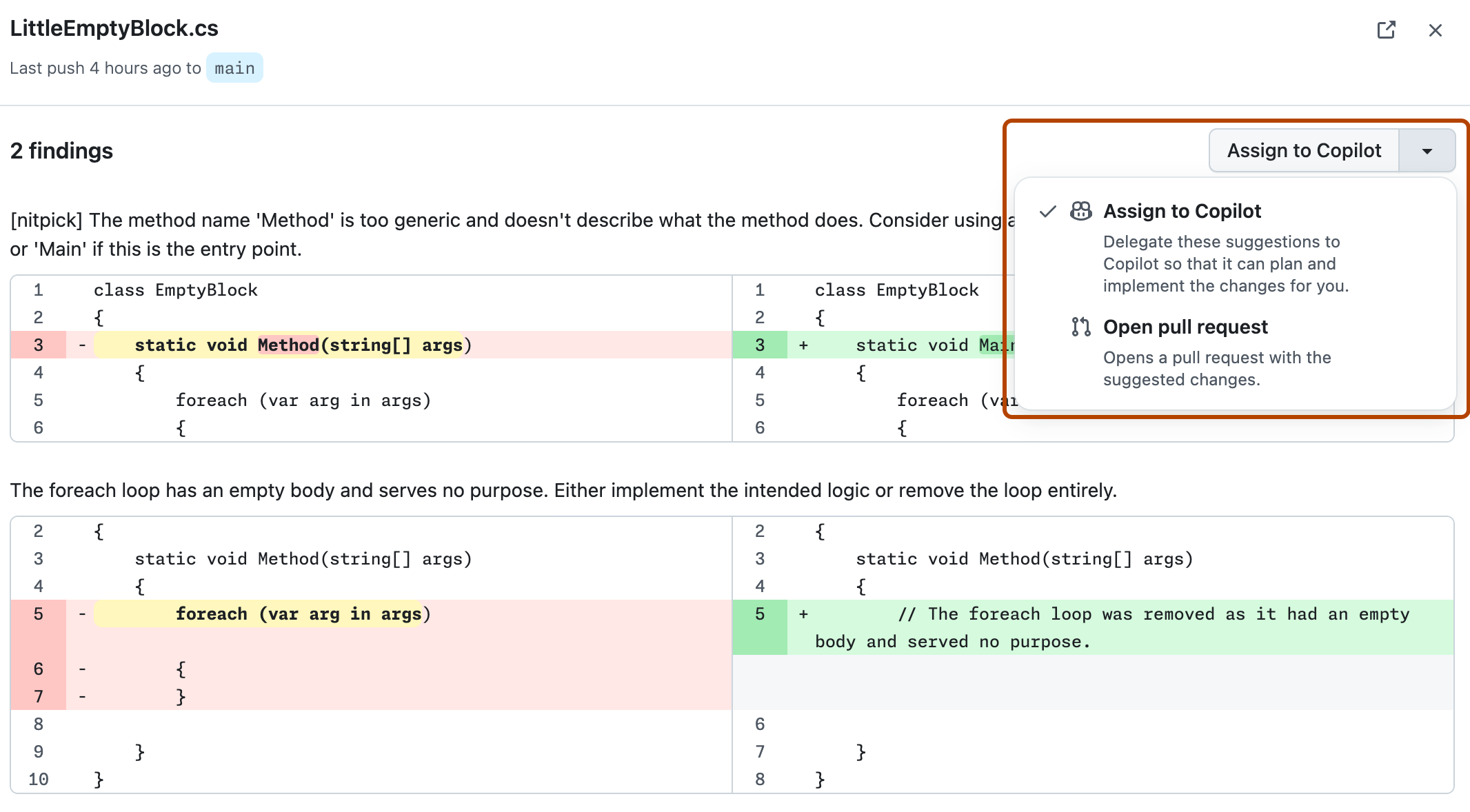
Expand the Assign to Copilot drop-down and then click Open pull request to change the default option to "Open pull request". Your preference is remembered.
-
Click Open pull request to open a dialog of commit options.
-
Click Commit change to create a pull request with the fixes.

4. Provide pull request reviewers with context
Providing context on why you are proposing changes to code is the best way to encourage team members to review your pull request. If you used Copilot coding agent, the pull request summary already includes full details of the problems fixed by the pull request.
If you opened the pull request directly from the GitHub Code Quality view, the pull request summary links to the "AI findings" view. You may want to copy some of the explanations from the AI findings view into the pull request summary.

5. See your changes make an impact on AI findings
When you return to the "AI findings" view after merging your pull request, the findings you fixed are no longer listed.
Next steps
- Learn more about how Copilot coding agent can help expedite development tasks. See Best practices for using GitHub Copilot to work on tasks.
- Provide feedback on GitHub Code Quality in the community discussion.