About Dependabot
This quickstart guide walks you through setting up and enabling Dependabot, viewing Dependabot alerts, and updating your repository to use a secure version of the dependency.
Dependabot은(는) 종속성 관리에 도움이 되는 세 가지 기능으로 구성됩니다.
- Dependabot alerts: 리포지토리에서 사용하는 종속성의 취약점을 알려줍니다.
- Dependabot security updates: 끌어오기 요청을 자동으로 생성하여 알려진 보안 취약성이 있는 종속성을 업데이트합니다.
- Dependabot version updates: 끌어오기 요청을 자동으로 생성하여 종속성을 최신 상태로 유지합니다.
Prerequisites
For the purpose of this guide, we're going to use a demo repository to illustrate how Dependabot finds vulnerabilities in dependencies, where you can see Dependabot alerts on GitHub, and how you can explore, fix, or dismiss these alerts.
You need to start by forking the demo repository.
- Navigate to https://github.com/dependabot/demo.
- At the top of the page, on the right, click Fork.
- Select an owner (you can select your GitHub personal account) and type a repository name. For more information about forking repositories, see 리포지토리 포크.
- Click Create fork.
Enabling Dependabot for your repository
You need to follow the steps below on the repository you forked in Prerequisites.
-
GitHub에서 리포지토리의 기본 페이지로 이동합니다.
-
리포지토리 이름 아래에서 Settings를 클릭합니다. "설정" 탭이 표시되지 않으면 드롭다운 메뉴를 선택한 다음 설정을 클릭합니다.

-
사이드바의 "Security" 섹션에서 Advanced Security 를 클릭합니다.
-
Under "Dependabot", click Enable for Dependabot alerts, Dependabot security updates, and Dependabot version updates.
-
If you clicked Enable for Dependabot version updates, you can edit the default
dependabot.ymlconfiguration file that GitHub creates for you in the/.githubdirectory of your repository. To enable Dependabot version updates for your repository, you typically configure this file to suit your needs by editing the default file, and committing your changes. You can refer to the snippet provided in Dependabot 버전 업데이트 구성 for an example.

참고 항목
If the dependency graph is not already enabled for the repository, GitHub will enable it automatically when you enable Dependabot.
For more information about configuring each of these Dependabot features, see Dependabot 경고 구성, Dependabot 보안 업데이트 구성, and Dependabot 버전 업데이트 구성.
Viewing Dependabot alerts for your repository
If Dependabot alerts are enabled for a repository, you can view Dependabot alerts on the "Security" tab for the repository. You can use the forked repository that you enabled Dependabot alerts on in the previous section.
-
GitHub에서 리포지토리의 기본 페이지로 이동합니다.
-
리포지토리 이름에서 Security를 클릭합니다. "Security" 탭이 표시되지 않으면 드롭다운 메뉴를 선택한 다음, Security를 클릭합니다.

-
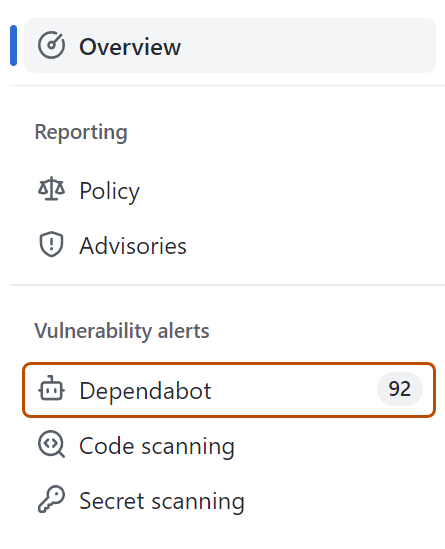
보안 개요의 "취약성 경고" 사이드바에서 Dependabot 을(를) 클릭합니다. 이 옵션을 누락하면 보안 경고에 액세스할 수 없으며 액세스 권한이 부여되어야 합니다. 자세한 내용은 리포지토리에 대한 보안 및 분석 설정 관리을(를) 참조하세요.
-
Review the open alerts on the Dependabot alerts page. By default, the page displays the Open tab, listing the open alerts. (You'll be able to view any closed alerts by clicking Closed.)
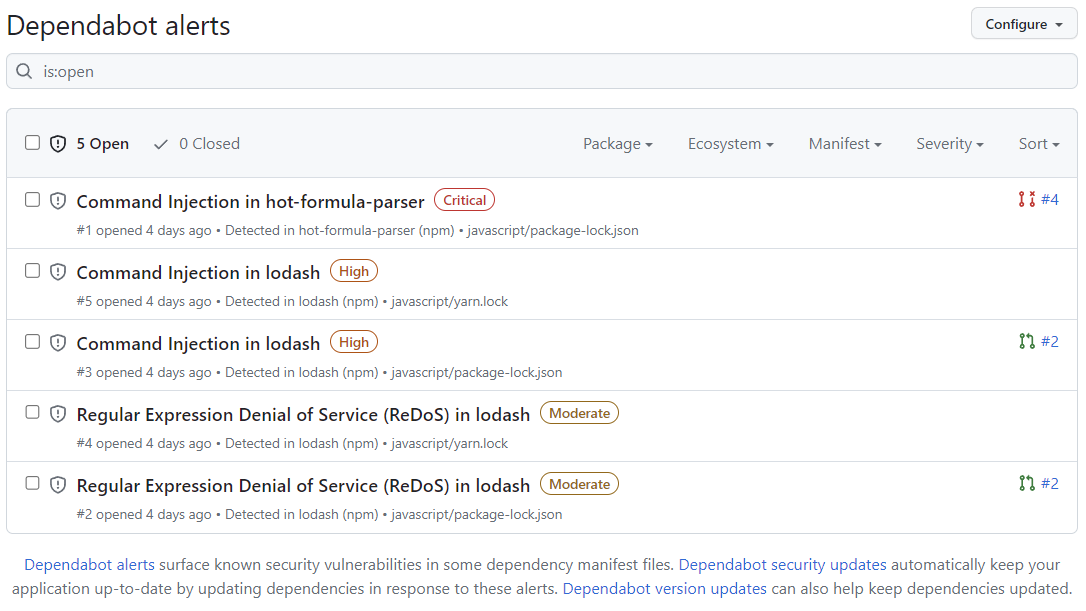
You can filter Dependabot alerts in the list, using a variety of filters or labels. For more information, see Dependabot 경고 보기 및 업데이트. You can also use Dependabot 자동 심사 규칙 to filter out false positive alerts or alerts you're not interested in. For more information, see Dependabot 자동 심사 규칙 정보.
-
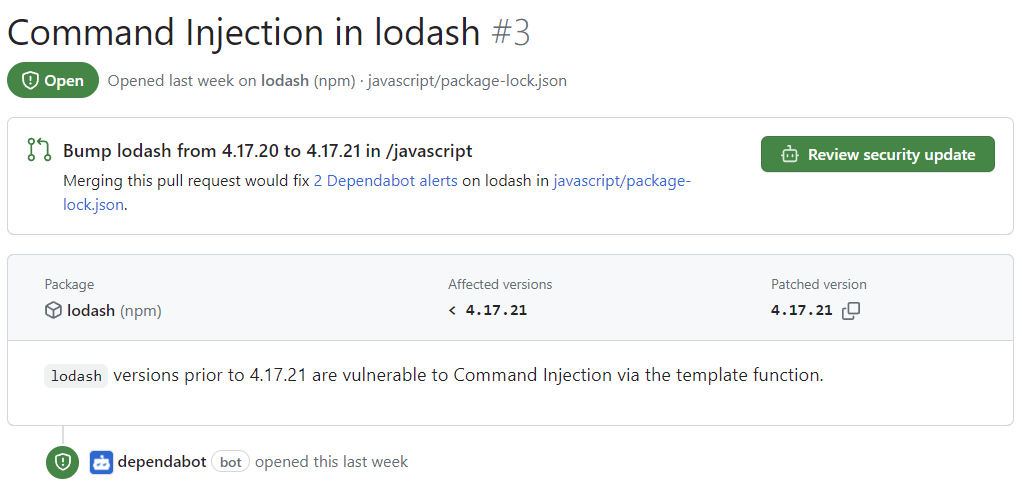
Click the "Command Injection in lodash" alert on the
javascript/package-lock.jsonfile. The details page for the alert will show the following information (note that some information may not apply to all alerts):- Whether Dependabot created a pull request that will fix the vulnerability. You can review the suggested security update by clicking Review security update.
- Package involved
- Affected versions
- Patched version
- Brief description of the vulnerability
-
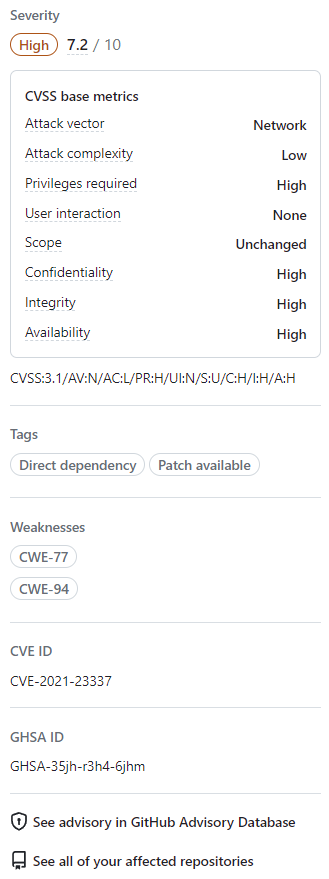
Optionally, you can also explore the information on the right-side of the page. Some of the information shown in the screenshot may not apply to every alert.
- Severity
- CVSS metrics: We use CVSS levels to assign severity levels. For more information, see GitHub Advisory Database 정보.
- Tags
- Weaknesses: List of CWEs related to the vulnerability, if applicable
- CVE ID: Unique CVE identifier for the vulnerability, if applicable
- GHSA ID: Unique identifier of the corresponding advisory on the GitHub Advisory Database. For more information, see GitHub Advisory Database 정보.
- Option to navigate to the advisory on the GitHub Advisory Database
- Option to see all of your repositories that are affected by this vulnerability
- Option to suggest improvements for this advisory on the GitHub Advisory Database


For more information about viewing, prioritizing, and sorting Dependabot alerts, see Dependabot 경고 보기 및 업데이트.
Fixing or dismissing a Dependabot alert
You can fix or dismiss Dependabot alerts on GitHub. Let's continue to use the forked repository as an example, and the "Command Injection in lodash" alert described in the previous section.
- Navigate to the Dependabot alerts tab for the repository. For more information, see the Viewing Dependabot alerts for your repository section above.
- Click an alert.
- Click the "Command Injection in lodash" alert on the
javascript/package-lock.jsonfile. - Review the alert. You can:
-
Review the suggested security update by clicking Review security update. This will open the pull request generated by Dependabot with the security fix.
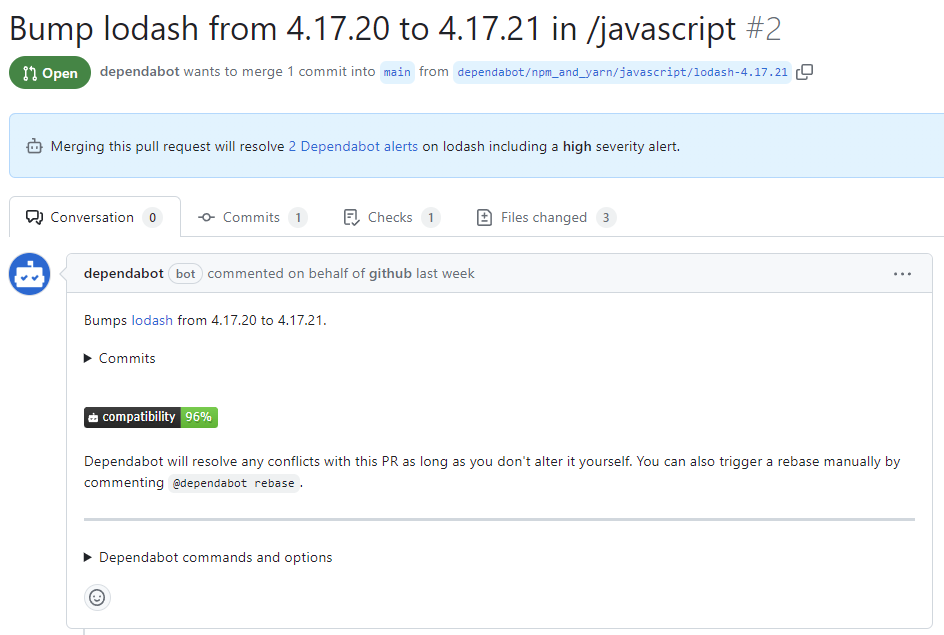
- On the pull request description, you can click Commits to explore the commits included in the pull request.
- You can also click Dependabot commands and options to learn about the commands that you can use to interact with the pull request.
- When you're ready to update your dependency and resolve the vulnerability, merge the pull request.
-
If you decide that you want to dismiss the alert
-
Go back to the alert details page.
-
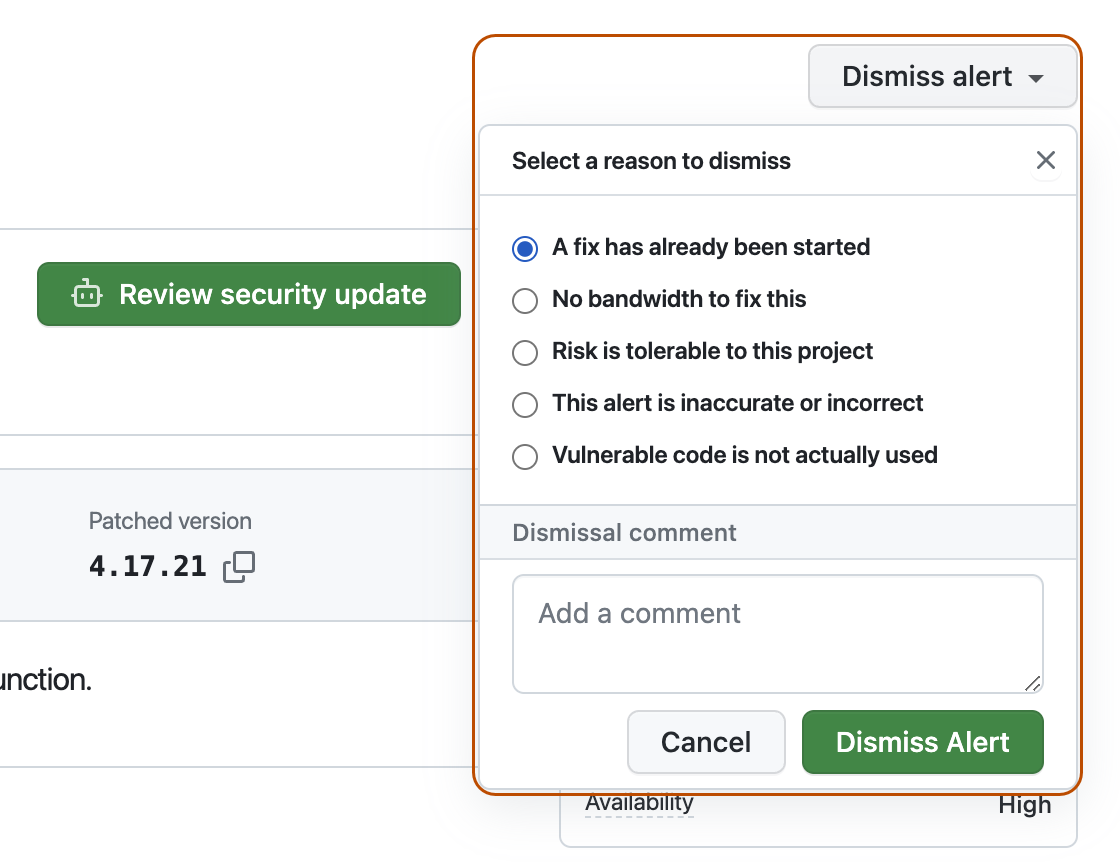
On the top-right corner, click Dismiss alert.
-
Select a reason for dismissing the alert.
-
Optionally, add a dismissal comment. The dismissal comment will be added to the alert timeline and can be used as justification during auditing and reporting.
-
Click Dismiss alert. The alert won't appear anymore in the Open tab of the alert list, and you are able to view it in the Closed tab.
-
-


For more information about reviewing and updating Dependabot alerts, see Dependabot 경고 보기 및 업데이트.
Troubleshooting
You may need to do some troubleshooting if:
- Dependabot is blocked from creating a pull request to fix an alert, or
- The information reported by Dependabot is not what you expect.
For more information, see Dependabot 오류 문제 해결 and 취약한 종속성 검색 문제 해결, respectively.
Next steps
For more information about configuring Dependabot updates, see Dependabot 보안 업데이트 구성 and Dependabot 버전 업데이트 구성.
For more information about configuring Dependabot for an organization, see Dependabot 경고 구성.
For more information about viewing pull requests opened by Dependabot, see 종속성 업데이트에 대한 끌어오기 요청 관리.
For more information about the security advisories that contribute to Dependabot alerts, see GitHub Advisory Database에서 보안 권고 탐색.
For more information about configuring notifications about Dependabot alerts, see Dependabot 경고에 대한 알림 구성.